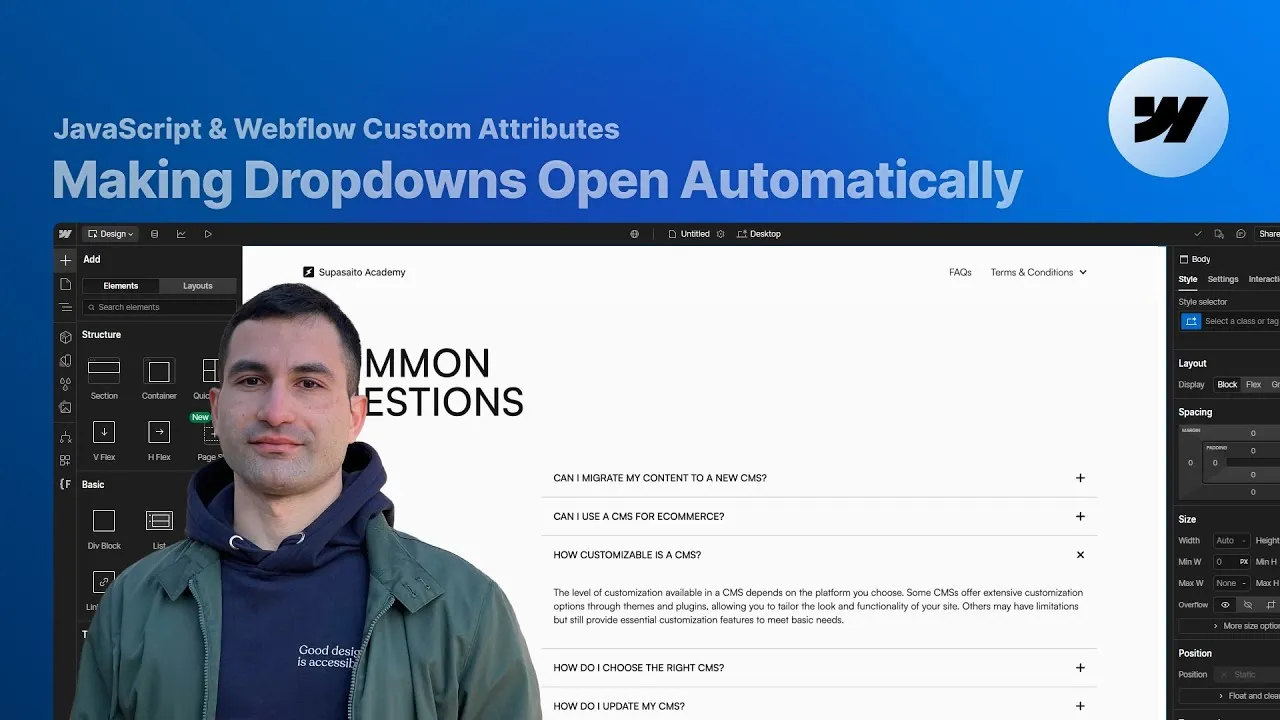
Turn ordinary Webflow dropdowns into ones that open on their own — automatically on page load, as they scroll into view, or when someone clicks a link or a button — using nothing but a handful of custom attributes. No extra JavaScript library, no editing code: you clone one project, drop in the attributes, and configure everything from Webflow’s settings panel.
Why bother? An open dropdown is a spotlight. Maybe it’s the key question on an FAQ page, the first module of a course you’re selling, or a section you want a link to jump straight into. This approach covers all of those — single dropdowns, CMS-driven ones, multiple sections, mobile exceptions, and cross-page links — with the same tiny set of attributes.
How it works
Everything runs off one small block of custom code that ships inside a component you clone. It reads your attributes and does the rest, so you never open the code editor. The simplest case is a single dropdown that opens on load: select the dropdown element itself (not the dropdown toggle) and give it fc-dropdown-behavior="open". Publish, and it’s open the moment the page loads. That’s the whole thing.
CMS content needs one extra idea. Anything you change on an element inside a Collection List applies to every item in that list, so you can’t just set the attribute to open and expect a single dropdown to react. The fix is Webflow’s ability to bind an attribute’s value to a CMS field: add a plain-text field (say, “open behavior”) to the collection, type open on the one item you want and leave it blank on the rest, then bind fc-dropdown-behavior to that field. Now only the item whose field says open actually opens.
Opening several dropdowns at once calls for a different mental model. A native Webflow dropdown is built so that clicking anywhere else closes it — two can never be open together. So when you have separate sections that each hold their own list, you don’t open them all on load; you open each one as it scrolls into view. Because the sections are far enough apart that only one is ever on screen, the result feels identical to “always open” without fighting Webflow’s behavior — and it’s still the same fc-dropdown-behavior="open" attribute driving it. If you’d rather not run this on small screens, add fc-dropdown-breakpoint-off and set it to the breakpoint from which the feature should switch off (landscape or portrait, for example); it reacts to viewport resizing, turning on and off as you cross that point.
Two final touches make it feel considerate. First, groups: put fc-dropdown="group" on the list or div that wraps a set of dropdowns, and once a visitor opens one themselves, the default auto-open stops for that group — so scrolling away and back won’t reopen the default over what they chose (a refresh resets it). Second, click-to-open: give the trigger a fc-dropdown-source attribute and the dropdown a matching fc-dropdown-target with the same value, and clicking the link opens that specific dropdown, on the same page or a different one, scrolling it into view. For links coming out of a Collection List, bind both values to the slug field — slugs are always unique, so each link maps cleanly to its own dropdown. And arriving via a trigger link automatically suppresses the default dropdown for that visit.
How to use it
-
Clone the project. Grab the Webflow cloneable — it includes the structure and the custom-code component, with all the configuration documentation right on the page.
-
Add the component to every page that uses it. Because the code lives in a component, copy it onto each page where dropdowns rely on this behavior — including pages that only host a target dropdown opened by a link elsewhere.
-
Open one on load. Select the dropdown element (not the toggle) and add
fc-dropdown-behavior="open". Publish and check the live link. -
Do the CMS version. Add a plain-text field to your collection, set it to open on the single item you want, and bind
fc-dropdown-behaviorto that field on the dropdown inside the Collection List. -
Open one per section on scroll. For multiple lists across separate sections, put
fc-dropdown-behavior="open"on one dropdown in each; they’ll open as each section scrolls into view. -
Add a breakpoint exception (optional). On any dropdown you want to tame, add
fc-dropdown-breakpoint-offwith a breakpoint name to turn the behavior off from that breakpoint down. -
Group your dropdowns (optional). Add
fc-dropdown="group"to each list or div wrapping a set of dropdowns so the auto-open steps aside once a visitor takes over. -
Wire up link triggers. Put
fc-dropdown-sourceon the link or button andfc-dropdown-targeton the dropdown, using the same value on both. For CMS links, bind both to the slug field so each trigger opens its own unique dropdown.